Locking Down a Home Router After a Firmware Update Wipes Its Settings
A firmware update can leave a router factory-reset, with Wi-Fi names, passwords, port forwarding and smart-device pairings gone. This troubleshooting guide walks through the ordered checks that confirm what the update actually changed, then how to re-secure the router and prevent the next update from doing the same thing.
 admin
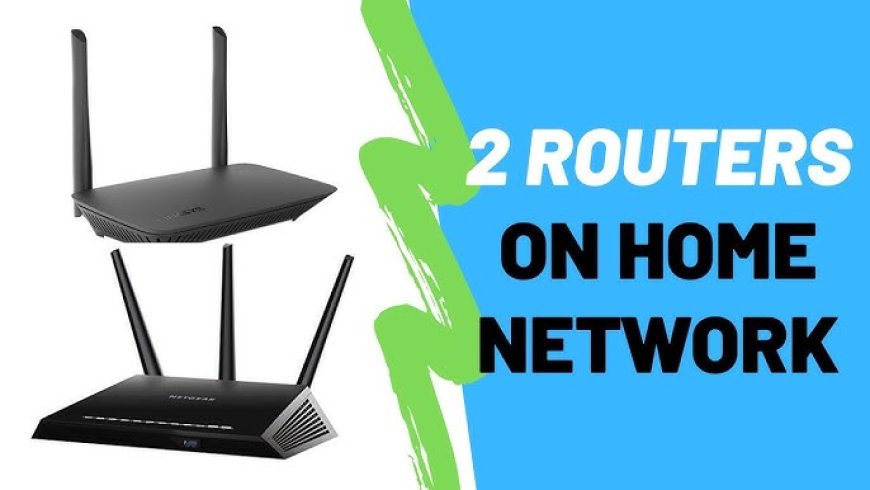
You wake up to a house full of offline devices. The router's admin page asks you to create a password, as if the hardware were new. Wi-Fi names are gone, port forwarding rules are gone, and every smart plug and camera needs to be paired again. That is the failure this guide addresses: a firmware update that appears to have reset the router to factory defaults, or that has quietly reverted security settings you had already configured.
The symptom is well documented. In a TP-Link community thread dated March 2026, one owner reported about 30 devices losing Wi-Fi and internet, being prompted to create an admin password, and then spending hours re-adding smart devices, cameras, climate gear and bulbs, with port forwarding deleted as well ¹. A separate forum post describes a router pushed to firmware 2.1.7 where the admin page still showed the default login name and the owner could not tell whether guest-network isolation or firewall rules had survived ². Neither report establishes a root cause, and the router vendor in the TP-Link thread called the reset unusual and asked for the model, firmware and hardware version before commenting further. Treat the cause as unknown until you have evidence from your own device.
One important distinction before you start: a full factory reset and a partial settings revert look similar from the couch but require different responses. A full reset removes the admin password, the Wi-Fi configuration and any saved rules. A partial revert may keep your login but flip a security option back to a default. Your first job is to determine which one happened, because re-securing a partially reverted router is a much smaller task than rebuilding a wiped one.
Work through these steps in order. Each one narrows the problem and preserves evidence you may need later.
1. Confirm what the admin interface is actually asking. If the login page invites you to create a password rather than enter one, the configuration has almost certainly been cleared. Do not create a new password yet if you have a saved configuration file. If your old password still works, the router was not fully reset and you are dealing with a settings revert.
2. Record the current firmware and hardware version before changing anything. The TP-Link thread's vendor response specifically asked for model number, firmware and hardware version, which suggests these details matter for diagnosing an unexpected reset. Note them down, along with the firmware version the router was running before the update if you know it.
3. Check for a saved backup configuration. The same thread's first reply advised saving the configuration file so it can be reloaded after an event like this. If you have a backup from before the update, restoring it is usually faster and less error-prone than rebuilding every rule by hand. Restore first, then verify each setting in the following steps rather than assuming the backup is complete.
4. Re-establish the admin credential. If the router was reset, set a strong, unique admin password immediately. The firmware 2.1.7 poster flagged that the admin page still had the default login name, which is exactly the condition an attacker looks for. Change the default username too if the interface allows it.
5. Verify wireless encryption and the guest network. Confirm the main network is using WPA2 or WPA3 as intended, and check whether the guest network is still enabled and whether client isolation survived. The 2.1.7 owner specifically could not confirm that isolation was still on after the update. If you cannot verify a security toggle, assume it reverted and set it explicitly.
6. Inspect the firewall and any remote-administration options. The same owner found the firewall reported as enabled but did not trust the checkbox after the update. Toggle remote administration off unless you genuinely need it, and confirm UPnP and any port-forwarding rules match what you intended. The TP-Link reporter lost all port forwarding in the reset, so rebuild those rules from your own notes rather than from memory.
7. Re-pair smart-home devices only after the network is secured. Rebuilding 30 device pairings, as the TP-Link owner had to do, is the slowest part of recovery. Doing it after the Wi-Fi name, password and encryption are final avoids pairing everything twice.
8. Disable automatic firmware updates if you want manual control, but understand the trade-off. Both the TP-Link thread starter and a reply said they turned auto-update off after the incident. That prevents a repeat surprise, but it also means security patches arrive only when you install them. If you take this route, set a recurring reminder to check for firmware monthly and read the release notes before applying.
When a step does not resolve the issue, escalate in this order. If you cannot log in at all after step 1, use the hardware reset button, then rebuild from your backup. If the backup will not restore or is older than your current setup, rebuild manually and create a fresh backup the moment you finish. If the router keeps resetting after every update, the vendor thread's request for model, firmware and hardware version is the right template for a support ticket: supply those details and describe the exact settings lost. If security settings appear to revert on their own without an update, stop treating it as a firmware quirk and treat it as a possible compromise, since the 2.1.7 poster's concern about encryption and firewall state is the same question an intruder would prefer you never ask.
Two facts remain unconfirmed across these reports: the specific router models involved and the actual cause of the resets. The TP-Link thread was still awaiting the owner's model and firmware details, and the 2.1.7 post names only a firmware version, not a vendor or model. Do not assume a particular brand is affected based on these accounts alone.
The durable fix is procedural rather than technical. Export a configuration backup after every meaningful change, keep a written record of your Wi-Fi credentials, port-forwarding rules and smart-device inventory, and treat each firmware update as a change window in which you re-verify the admin password, encryption mode, guest-network isolation and firewall state afterward. If you are also weighing a hardware change, our comparison of Wi-Fi 6 and Wi-Fi 7 routers covers when a new router is the better answer than another recovery cycle.
Sources
- ¹ Update Reset Entire Router community.tp-link.com
- ² Router update 2.1.7 and security reset www.conflingo.com