
Cleaning Up Windows Startup Apps to Cut Boot Time
A slow boot is usually a queue of auto-launching programs rather than a hardware failure, and Windows ships with the tools to find and disable them. This troubleshooting guide walks through Task Manager, Settings, Startup folders and Autoruns in order, explains what to do when a step doesn't help, and covers the cases where startup cleanup isn't the real fix.
 admin
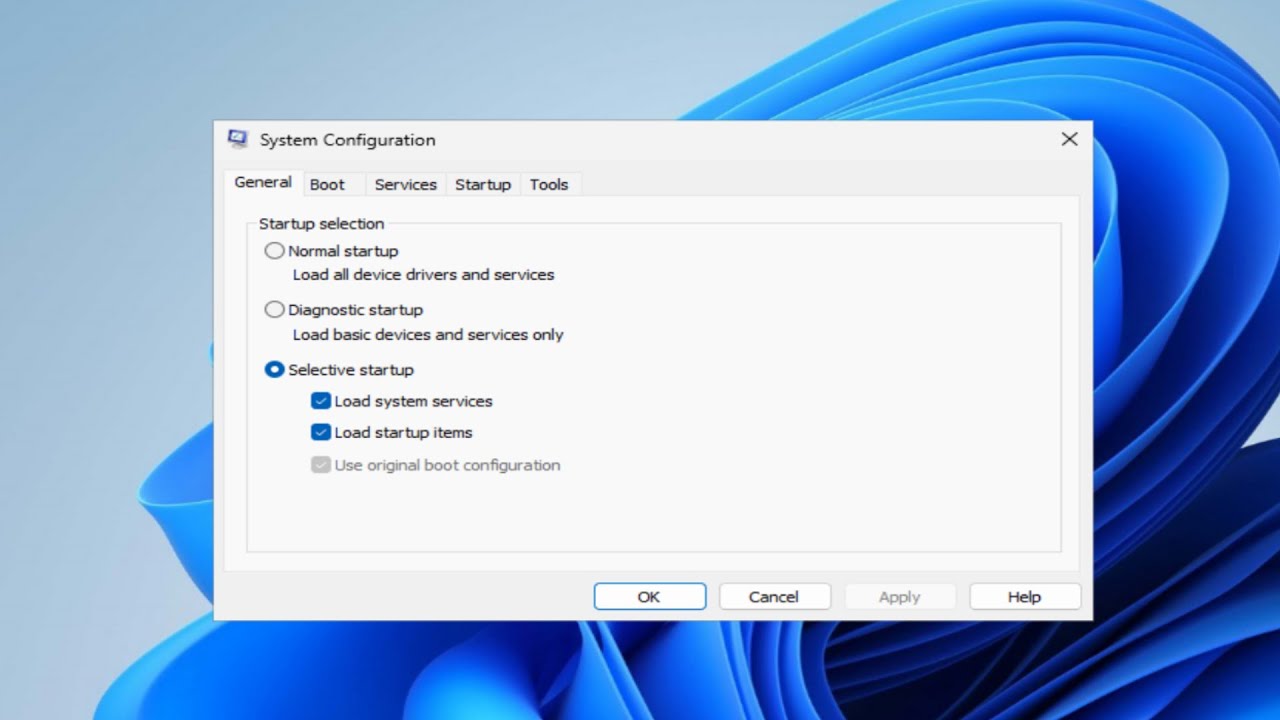
If a Windows PC takes a long time to reach a usable desktop, the most common cause is not failing hardware but a long queue of programs set to launch automatically at sign-in. Each auto-starting app consumes disk, memory and CPU while Windows is still finishing its own boot work, so the desktop appears but the machine stays sluggish for a while afterward. The fix is a careful audit of startup entries, not a third-party "booster" utility. As one long-time Windows writer puts it, booster apps tend to apply generic fixes that can be detrimental to stability, health and lifespan rather than identifying the actual bottleneck ¹.
The symptom to watch for is specific: the login screen clears, the desktop and taskbar appear, but the disk activity light stays busy and apps respond slowly for a minute or more. A second useful signal is the last boot time shown in Task Manager's Startup Apps tab, which gives you a baseline to compare against after each change ².
Work through the following steps in order, restarting and rechecking boot time after each one so you know which change actually helped.
1. Open Task Manager (right-click the taskbar or search for it from Start) and switch to the Startup Apps tab. You will see each entry, whether it is enabled, and an impact rating. Disable the entries marked High first, since these are the ones the system itself flags as costing the most at startup. Right-click an entry and choose Disable; nothing is uninstalled, so this is reversible.
2. Review what you actually disabled. A high-impact entry is not automatically useless. Microsoft Edge, for example, can appear with a large bundle of processes behind it, and whether it should stay enabled depends entirely on whether you use it. Disable only what you recognize and do not need running the moment you sign in.
3. Check the second management surface at Settings > Apps > Startup. Some entries that appear here are not shown in the same way in Task Manager, and this page gives a cleaner toggle view for store apps and some desktop programs. Disable anything redundant with step 1 or clearly unnecessary.
4. Inspect the Startup folders. Open the Run dialog and enter shell:startup for your own account, and shell:common for the all-users folder. These folders hold shortcuts that launch programs at sign-in, and deleting a shortcut removes the auto-launch without touching the installed application. Move shortcuts to another folder first if you want a quick undo.
5. For entries that survive the first four steps, use Microsoft's Autoruns utility. It lists startup locations far beyond what Task Manager and Settings expose, including scheduled tasks, services and shell extensions. Back up before changing anything, and disable rather than delete where possible, since Autoruns reaches into the Registry and a careless deletion can affect other software.
If step 1 does not improve boot time, the bottleneck is probably not startup apps at all. Check whether the machine has a mechanical hard drive rather than an SSD, whether free disk space is critically low, or whether Windows Update is installing something in the background during the boot you are measuring. If disabling high-impact entries helps only slightly, repeat the measurement after a full shutdown rather than a restart, because fast startup can mask the real cost of the sign-in phase.
If step 3 or 4 reveals entries you do not recognize, do not delete them blind. Search the exact file name or publisher first; some belong to drivers, security software or hardware utilities, and removing them can break functionality that is harder to diagnose than a slow boot. When in doubt, disable and observe for a few days before deleting anything.
If Autoruns in step 5 shows a very long list, resist the urge to clear it wholesale. Work through one category at a time, restarting between changes, and keep a written note of what you disabled so you can reverse a change that causes a problem. The same caution applies to Registry editing: the Yahoo Tech guide is explicit that hidden startup entries should be handled with a backup first.
One expectation to set: startup cleanup shortens the wait for a usable desktop, but it does not make an old machine fast. If boot time is still poor after the audit, the constraint is hardware or a failing component, and the next diagnostic step is checking drive health and memory rather than hunting for more startup entries. Windows itself has also improved at scheduling background work outside active hours, so some of the load you see at boot may be maintenance that would settle on its own. Measure before and after, change one thing at a time, and treat every disable as reversible — that discipline is what separates a real fix from a booster app's one-click guesswork.
Sources
- ¹ Stop using performance booster apps, here are 5 Windows tweaks that work better - With over five years of experience in the tech industry, Kazim excels at simplifying complex topics, making them acces www.xda-developers.com
- ² 4 ways to detect and stop hidden apps that slow down Windows startup tech.yahoo.com