
Upgrading an Older Laptop: What to Check Before Buying an SSD or RAM
Before spending money on an SSD or RAM upgrade, confirm what your laptop actually supports: open memory slots, the correct memory type and speed, and whether the storage bay takes SATA or NVMe drives. This explainer walks through the checks in the right order, explains why storage usually comes first, and notes which parts of a laptop can never be upgraded.
 admin
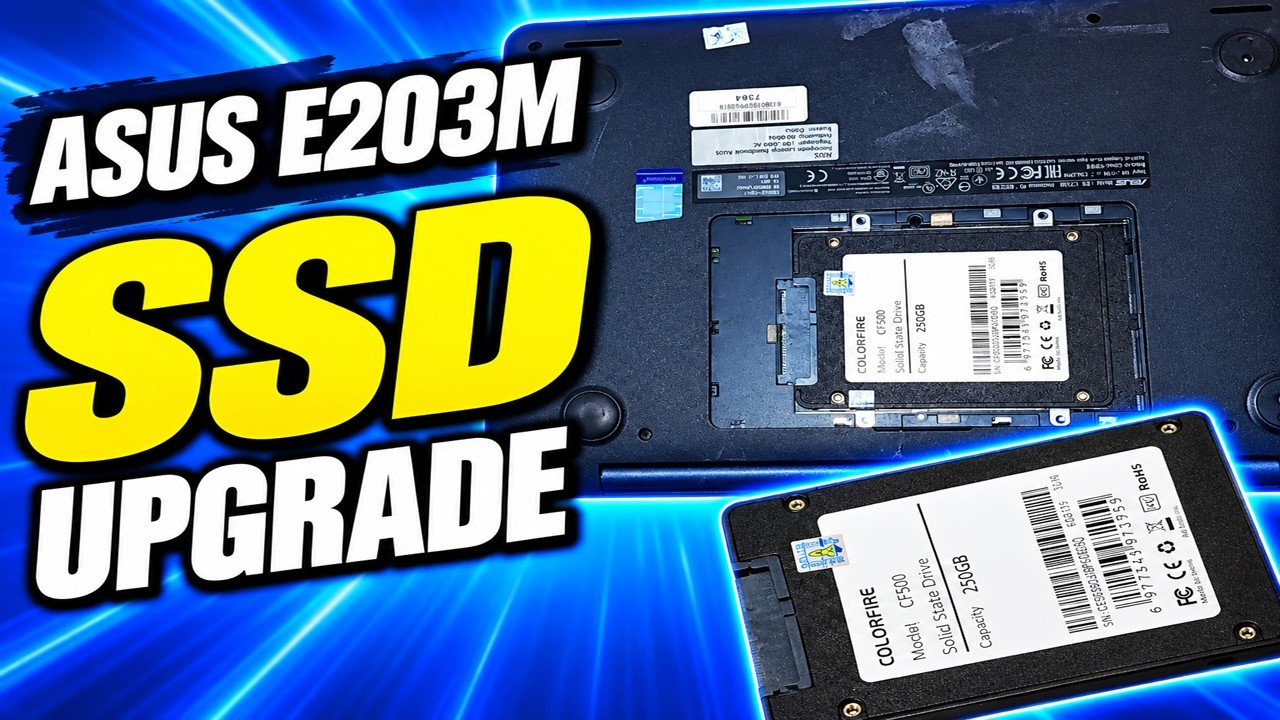
An older laptop that feels slow is usually not short of processing power. It is short of fast storage and enough working memory. RAM is the machine's short-term workspace — the space where open programs, browser tabs and documents live while you use them — and an SSD is storage that reads and writes data with no moving parts, which is why it cuts boot times and file-load delays far more than a spinning hard drive does. Both parts can often be replaced, but only after you confirm what the machine will accept.
The first check is diagnostic, not commercial. Before buying anything, identify which of the two bottlenecks you actually have. If the laptop still boots from a mechanical hard drive, storage is almost always the place to start: the GearVN ASUS upgrade guide recommends prioritizing an SSD when the machine still uses an HDD, and RAM when an SSD is already fitted but heavy multitasking still stutters ¹. The symptoms split along the same line. Slow startup, slow file opening and a clicking or rattling noise from inside the chassis point to a hard drive. Stuttering with many browser tabs, Office documents, Zoom or Teams open, and a mouse pointer that lags, point to insufficient memory. A nearly full C: drive that blocks Windows updates is a storage-capacity problem, not a speed one.
The second check is whether the parts are replaceable at all. On most laptops the CPU and graphics processor are soldered to the mainboard and cannot be upgraded, as the GearVN guide notes for ASUS machines. Memory and storage are the realistic targets. Even there, some thin laptops solder RAM directly to the board, leaving only the drive swappable, so the question "can I add RAM?" has to be answered per model rather than per brand. The site's earlier piece on soldered versus upgradeable laptop RAM covers how that distinction affects how long a machine stays useful.
The third check is memory compatibility, and it is where most buying mistakes happen. You need three facts before ordering a module: the memory generation (DDR3, DDR4 or DDR5), the form factor (most laptops use SO-DIMM modules, but some use soldered or non-standard layouts), and whether a free slot exists or you are replacing what is installed. The GearVN guide points to CPU-Z as a free tool for reading the RAM type and slot count, combined with looking up the exact laptop model to confirm the memory and drive standards it supports. The Newegg Insider upgrade guide frames the same problem from the buyer's side: with hundreds of laptop models on the market, knowing where to start is the hard part, which is why compatibility checking comes before shopping ². Matching the speed rating of an existing module is the safe default; mixing capacities is generally fine, but mixing generations is not.
The fourth check is the storage interface. A 2.5-inch SATA bay and an M.2 slot are physically different, and an M.2 slot may accept only SATA drives, only NVMe drives, or either, depending on the generation of the machine. The drive's physical length also matters — M.2 drives come in different lengths, and a longer drive will not fit a shorter slot. Confirm the interface and the supported length from the model's specification before purchase. If the goal is to understand which kinds of SSD upgrades actually change day-to-day behaviour, the site's earlier guide to what an SSD upgrade actually helps goes deeper on that question.
Two concrete cases show how the order of checks changes the answer. Take a laptop with 8 GB of RAM and a mechanical hard drive: the drive is the dominant bottleneck, so an SSD replacement delivers the largest visible improvement, and RAM can follow if multitasking still struggles afterwards. Take a laptop that already has an SSD but 8 GB of RAM and a habit of keeping thirty tabs open: here the storage is fine and the memory is the constraint, so a RAM upgrade — to at least 8 GB total, as the GearVN guide puts it — is the sensible first move.
The practical consequence is that the purchase decision comes last, not first. Identify the bottleneck, confirm the CPU and GPU are fixed, read the memory type and slot count with a tool like CPU-Z, look up the exact model's storage interface and drive length, and only then buy. One caution belongs here: if the machine is being upgraded partly to run local AI models, memory capacity matters more than raw speed, and the site's roundup of local AI models that fit in 16 GB of RAM is a useful reference for how much headroom that workload needs. What the sources do not establish is how any specific laptop model behaves after an upgrade — no benchmark or compatibility result for a named machine should be assumed from this article.
Sources